With more and more businesses turning to remote working due to the coronavirus, it is necessary to have reliable tools at hand to aid employees in doing their tasks. One of these tools is Microsoft’s Remote Desktop Connection or RDC. It comes free on all versions of Windows and is also available in other platforms such as macOS, iOS, and Android. It enables users to connect to their work desktops in no time. If you want to know how to use remote desktop connection, let us walk you through the process in this article. But first, let us give you a background of what this software is about.
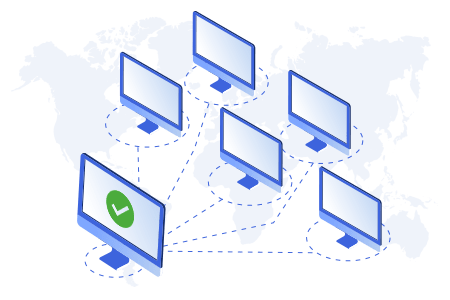
A remote desktop connection - is a client application that allows you to control another computer remotely and use the resources available on that device. Users can either access or host a computer over the internet.
Remote desktop software - allows people to work from any location. They don’t have to be connected locally to the machine and no hardware is necessary for this to work. The only requirement is the application and internet connection, and you’re good to go.
This is appealing for organizations that want to cut on capital spending for hardware and overheads related to IT departments. Software updates and security matters are all taken care of by the remote desktop provider. If you’re using a paid application, these features are part of the subscription fee.
This setup is also ideal for companies with employees working from home or from other geographical locations. All the authorized personnel that have access to the remote desktop can work on similar files at the same time. This makes the exchange of data seamless. Meanwhile, employees that travel all the time can now log in from anywhere in the world to update files, submit reports, troubleshoot other devices, and access company information.
Steps on How to Use Remote Desktop Connection
First, make sure that your computer has a remote desktop connection application installed. After confirming this, toggle the bar to enable it. Click start, and then type in ‘Control Panel’ on the search bar. Choose System and Security, and then under System click “Allow Remote Access” and then OK. After this, you’ll need to set up the connection from your own computer so you can access and control the device.
Press the Windows button. From the search field, type windows remote desktop, and click Remote Desktop Connection. At the open window, enter the computer name or IP address of the remote device you want to access. Type your username in the appropriate boxes, and click Connect.
A notification will pop up asking if you trust this remote connection. Tick off the box that says “Don't Ask Me Again for Connections to This Computer”, and click Connect.
You will now be asked to input your credentials. Type your username and password in the appropriate fields and check the box to remember these details so you can save yourself from retyping your credentials every time you make a connection. However, if you have security concerns, leave this box unchecked and click OK.
The following window might tell you that the identity of the remote computer cannot be verified. When this message appears, it means that the computer you’re connecting to is possibly using a self-signed security certificate (which by default is untrusted by other machines). Despite this warning, you can still connect to the device. If you want to skip receiving this message in the future, check "Don't Ask Me Again for Connections to This Computer", and click Yes.
This should now connect you to the remote computer. On the top of your screen, you can see a connection bar when your remote session is on. This bar offers you several functions that you can use. It may disappear after a few seconds but pinning it can ensure that it always remains visible. The connection info tells you about the quality of the connection. The minimize button can shrink the session so it gets out of the way when unnecessary while the Restore button adjusts your screen to your desired size. Once done, you can click the Close button to disconnect the session.
Final Thoughts
As remote work becomes the lifeline of many companies today, knowing how to use remote desktop connection is imperative. Aside from the urgent need, it also brings several benefits like cost-savings, efficiency, and productivity. It allows users to get the same desktop experience they are used to having, including the software, which they are accustomed to.
If you want a more advanced remote desktop - tool, choose Itarian. It works on multiple systems to enhance and accelerate your business processes.
