IT professionals seeking remote working solutions may have encountered the term 'Chromoting', which relates to Chrome Remote Desktop provided by Google. So what is Google Chromoting, actually? Chrome Remote Desktop, offered by Google, is a versatile tool that works on both PC and mobile devices. You can get it from the Web giant's Chrome Browser. This remote desktop connection software is accessible for personal use and enterprise applications.
The reason why there is so much hype about Chrome's remote desktop is that it is a reliable and straightforward remote desktop tool. Additionally, this remote connectivity platform comes from the Google ecosystem, so you can easily improve your experience with various integrations. According to general performance reviews, Chrome Remote Desktop is considered a reliable tool for remote work.
Things You Can Achieve With Chrome Remote Desktop
Chrome Remote Desktop platform can offer you simple-to-use remote desktop software to achieve various advantages with an easy setup. With the Chrome Remote Desktop extension installed, you can complete the below tasks:
- There is no concern about going through the complex setup procedure for other users to connect to your desktop from any remote location.
- Users can also share the screen with one another to collaborate in real-time and always stay productive.
- The user only has to have the Chrome browser installed to use Chrome Remote Desktop Google. Your team also doesn't have to go through any advanced training sessions to understand the procedure.
- Through Google's chromoting process, one can use a computer or mobile device to access files and applications on another system. Users can also completely take over the remote desktop.
- Unlike other remote desktop tools, downloading the Chrome Remote Desktop extension is free. Google has developed it for compatibility with various devices, supporting Windows, Android, Mac, Linux, and iOS operating systems.
Procedure To Use Chrome Remote Desktop To Access Your Computer
In order to access your computer from another system, you have to complete the basic settings on your computer first. So search for Chrome remote desktop Google extension from Chrome Web Store.
- Once installed, click on the option labeled "Set up remote access."
- Next, you would be redirected to Chrome remote desktop extension. Hit the "Add to Chrome" button and proceed further by clicking confirm. Get back to the home tab to find a window and give a preferred name for your computer before clicking "Next."
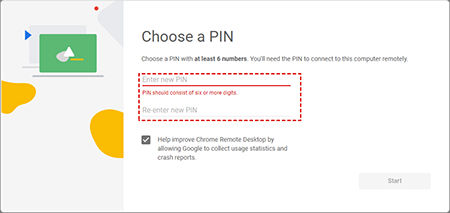
- Now you can set your six digits PIN before proceeding.
- Your operating system may prompt you to confirm if you permit the new extension to start a remote connection. Next, click on "Confirm" to get your system online.
- To disable the remote connection, click on the Chrome Remote Desktop extension icon in your browser's toolbar. Next, select the trash icon beside your device name.
To remote access your computer from your remote device, next, you need to build a connection to your computer with other devices. First, you need to sign into your Chrome through the Google account used on your computer. There is no need to install another tool for remote desktop connection. Just click on your device's name to start the remote connection. Now enter your PIN to get access to another desktop easily.
Chrome Remote Desktop Connection Through Android Devices
If you want to establish a remote desktop connection through an android device, first, you need to download the chrome remote desktop Google app. You can install it from Google Play Store. Follow the below steps for remote connection:
- Once you have installed the Chrome Remote Desktop app, turn on Chrome on your computer to install the chrome Remote Desktop extension.
- Now start the application on your computer in your Chrome Apps launcher. Next, go through a few steps for granting authorization for the app to run in your system.
- On the next screen, you can provide the other user with the code you receive from the app to get assistance.
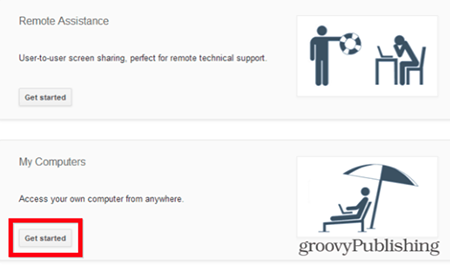
- Since you want to access your own computer from your Android device, click on the "Get Started" button on the My Computers category on the Remote Assistance page.
- Now click on Enable the remote connections. Someone who can access your Android device can also access your computer. Since you don't want that, set your six-figure PIN code on the computer. Enter the PIN through your android device to connect to your computer.

After learning how to set up the Chrome remote desktop app on your PC and other Android devices, you can easily control your remote PC in real time. If you have a good internet connection, you can get productive work anywhere you like from your available devices through remote access. If you want a good IT management platform to take your enterprise network on board with seamless remote monitoring, contact ITarian at your budget.