Mastering Remote Desktop on MacBook for Secure and Flexible Access
Updated on February 2, 2026, by ITarian
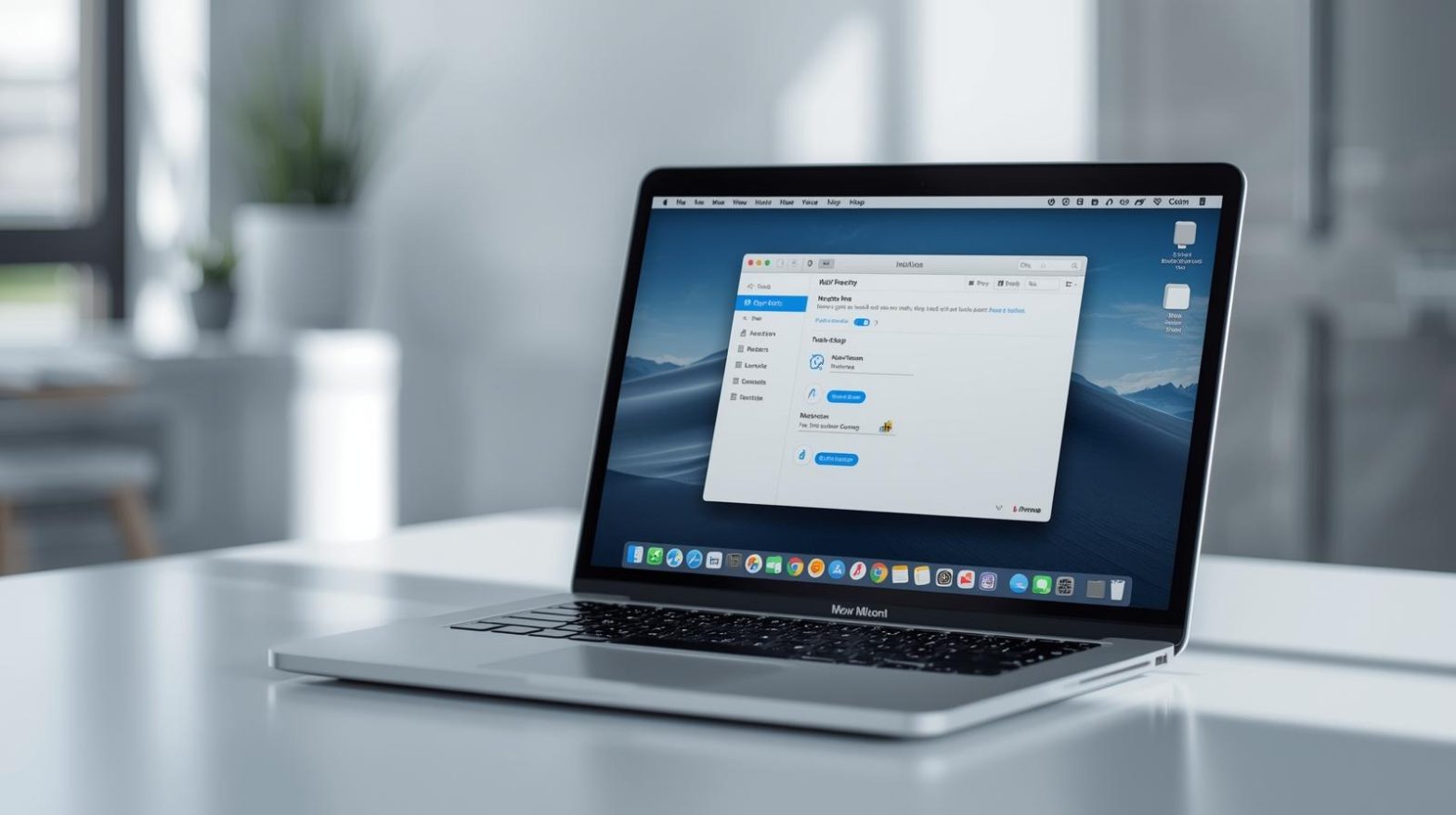
Have you ever needed to access your MacBook from another location or manage systems remotely without compromising security? Remote desktop on MacBook has become an essential capability for professionals, IT teams, and business leaders who rely on flexible work environments. Whether you are troubleshooting issues, accessing files while traveling, or supporting remote employees, remote desktop technology helps bridge the gap between locations and devices.
With the rise of hybrid work and distributed teams, remote desktop on MacBook is no longer just a convenience. It is a strategic tool that enables productivity, collaboration, and secure system management. Understanding how it works and how to use it effectively can make a noticeable difference in day-to-day operations.
What Is Remote Desktop on MacBook
Remote desktop on MacBook allows users to access and control a Mac system from another device over a network or the internet. This capability enables screen sharing, file access, application usage, and system administration without being physically present at the machine.
Apple provides built-in tools such as Screen Sharing and Apple Remote Desktop, while third-party remote access software expands functionality for business and enterprise use cases. These tools make remote desktop on MacBook adaptable to both personal and professional environments.
Why Remote Desktop on MacBook Is Important Today
Modern work environments demand flexibility. Employees work from home, offices, and different regions, often switching between devices. Remote desktop on MacBook supports this flexibility by allowing seamless access to systems regardless of location.
For IT managers and cybersecurity teams, remote desktop access reduces downtime and improves response times. Issues can be resolved quickly without waiting for physical access, which directly impacts productivity and user satisfaction.
Built-In Remote Desktop Options on macOS
macOS includes native features that support remote desktop on MacBook. These tools are easy to enable and suitable for basic remote access needs.
Screen Sharing allows users to view and control another Mac on the same network or over the internet with proper configuration. Apple Remote Desktop offers more advanced management features, such as system updates, file transfers, and remote commands, making it ideal for IT administration.
Third-Party Tools for Remote Desktop on MacBook
While built-in tools are helpful, many organizations rely on third-party solutions to enhance remote desktop on MacBook capabilities. These tools often provide cross-platform support, stronger security controls, and better performance over long distances.
Popular remote access software integrates features such as multi-factor authentication, session recording, and centralized dashboards. These enhancements make remote desktop on MacBook more scalable and secure for business environments.
Security Considerations for Remote Desktop on MacBook
Security is a top concern when enabling remote access. Remote desktop on MacBook should always be configured with strong authentication and encryption. Weak credentials or open ports can expose systems to unauthorized access.
Best practices include using secure passwords, enabling firewall rules, and limiting access to trusted users. Regular updates and monitoring help ensure that remote desktop connections remain protected against emerging threats.
Remote Desktop on MacBook for IT Support Teams
IT support teams benefit significantly from remote desktop on MacBook. Troubleshooting user issues, installing updates, and configuring settings can all be done remotely. This reduces the need for on-site visits and speeds up resolution times.
By leveraging remote desktop access, IT teams can support a larger user base with fewer resources. This efficiency is especially valuable for organizations with remote or globally distributed employees.
Performance Tips for Smooth Remote Desktop Sessions
A smooth remote desktop on MacBook experience depends on network quality and system settings. High latency or limited bandwidth can impact performance and user experience.
Optimizing display settings, closing unnecessary applications, and using wired connections when possible can improve responsiveness. Choosing the right remote access tool also plays a role in maintaining consistent performance.
Remote Desktop on MacBook for Business Continuity
Business continuity relies on the ability to access systems during disruptions. Remote desktop on MacBook ensures that critical operations can continue even when physical offices are unavailable.
Executives and managers can access reports, systems, and communication tools remotely, minimizing downtime. This resilience supports long-term business stability and operational readiness.
Managing Multiple Devices With Remote Desktop on MacBook
Organizations often manage fleets of devices across departments. Remote desktop on MacBook simplifies device management by providing centralized access to systems.
Administrators can deploy updates, monitor performance, and enforce policies without physically handling each device. This centralized approach reduces operational overhead and improves consistency.
Compliance and Remote Desktop on MacBook
Many industries operate under strict regulatory requirements. Remote desktop on MacBook can support compliance by providing secure access logs, audit trails, and controlled permissions.
When configured correctly, remote access tools help organizations demonstrate compliance with data protection and security standards. This is particularly important for sectors such as healthcare, finance, and technology.
Common Challenges With Remote Desktop on MacBook
Despite its benefits, remote desktop on MacBook can present challenges. Connectivity issues, configuration errors, and user training gaps may affect adoption.
Addressing these challenges requires clear policies, proper documentation, and ongoing support. Regular testing ensures that remote desktop access remains reliable and secure.
Best Practices for Using Remote Desktop on MacBook
To maximize the value of remote desktop on MacBook, organizations should follow proven best practices. These practices help maintain security, performance, and user satisfaction.
Key practices include limiting access rights, monitoring sessions, and keeping software up to date. Educating users on secure remote access habits further strengthens overall security.
Remote Desktop on MacBook in Hybrid Work Environments
Hybrid work models depend heavily on remote access tools. Remote desktop on MacBook supports collaboration by allowing employees to access their work environments from anywhere.
This flexibility helps organizations attract and retain talent while maintaining productivity. Secure remote desktop solutions ensure that flexibility does not come at the cost of security.
Comparing Remote Desktop Options for macOS
Choosing the right remote desktop solution depends on specific needs. Built-in tools may suffice for small teams, while enterprises often require advanced features.
Evaluating factors such as scalability, security, and ease of use helps organizations select the best remote desktop on MacBook solution for their environment.
Future Trends in Remote Desktop on MacBook
Remote desktop technology continues to evolve. Advancements in cloud computing, artificial intelligence, and network optimization are shaping the future of remote access.
Future remote desktop on MacBook solutions are expected to offer improved automation, predictive performance tuning, and deeper integration with enterprise IT ecosystems.
FAQs
-
What is remote desktop on MacBook
Remote desktop on MacBook allows users to access and control a Mac system remotely over a network or the internet. -
Is remote desktop on MacBook secure
Yes, when configured with strong authentication, encryption, and proper access controls. -
Can remote desktop on MacBook be used for IT support
Yes, it is widely used by IT teams for troubleshooting, updates, and system management. -
Do I need third-party software for remote desktop on MacBook
Not always, but third-party tools provide advanced features and better scalability. -
Does remote desktop on MacBook work for remote employees
Yes, it is ideal for supporting remote and hybrid work environments.
Final Thoughts
Remote desktop on MacBook has become a vital tool for modern workplaces. It enables secure access, supports remote work, and empowers IT teams to manage systems efficiently. By choosing the right tools and following best practices, organizations can unlock the full potential of remote desktop technology. As work environments continue to evolve, mastering remote desktop on MacBook will remain a key factor in maintaining productivity, security, and operational resilience.
Elevate your IT management — start your complimentary ITarian trial

 Loading...