Clear Cache on Android Phone for Better Performance
Updated on November 11, 2025, by ITarian
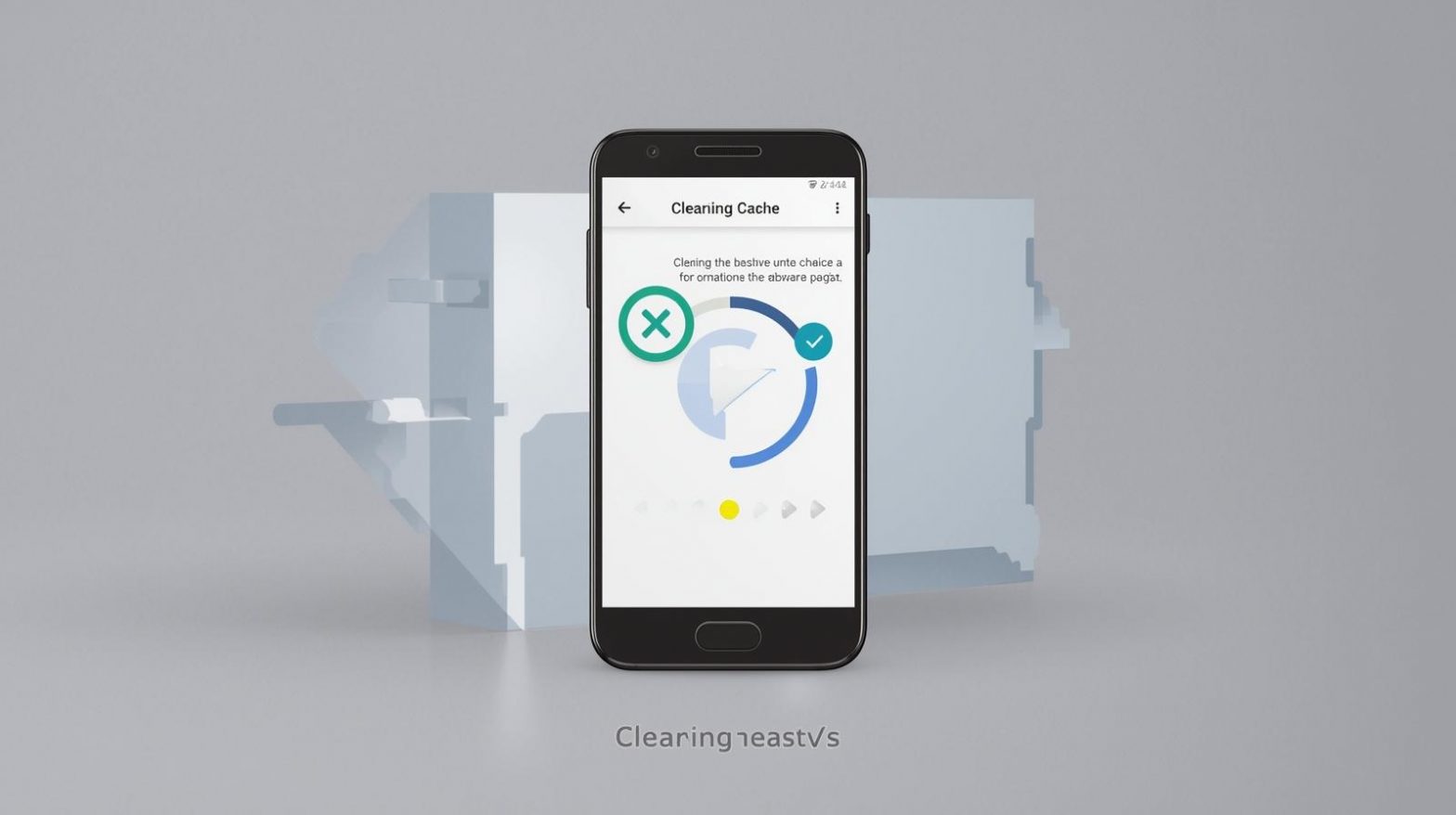
Have you ever noticed your Android phone slowing down, apps taking ages to load, or storage suddenly running low? If so, one of the most effective remedies is knowing how do you clear the cache on an Android phone. For professionals in online security, cybersecurity, IT management, and business leadership, maintaining device performance and data security across mobile devices is vital. Clearing cache becomes a routine yet powerful practice to ensure smooth operation and reduce vulnerability to hidden issues.
In this comprehensive article, we’ll explain what cache is, provide detailed methods (for apps, system-wide, browser & more), highlight when and why you should clear it, and offer troubleshooting and best practices tailored for both individual and enterprise use.
What Is Cache and Why Does It Matter on Android
Cache refers to temporary files that apps, the system, and the browser store to speed up tasks—like loading images, keeping preferences, or remembering partial actions. While beneficial, cache can accumulate and become counterproductive.
Key impacts of excessive cache:
-
Reduced free storage space → impedes new apps, updates
-
Slower app or system performance (because of outdated or corrupted cache)
-
App crashes, UI glitches, or unexpected behavior
-
Security risk: cached data may contain sensitive info or session tokens
Understanding cache’s role helps illustrate why clearing it is more than a maintenance chore—it’s a performance and security step.
Signs It’s Time to Clear Cache on Your Android Phone
Before diving into methods, let’s identify when clearing cache is appropriate.
Watch for:
-
Storage → Shows high “Other” or “Cached data” with little explanation
-
Apps take longer to open than usual or crash frequently
-
UI lags, system feels sluggish
-
Browser loads old content or misbehaves
-
You just updated Android version or major apps
When these symptoms appear, you can safely proceed to clear cache—with minimal risk.
Method 1: Clear Cache for Individual Apps
This is the most targeted and safe way — you remove only the temporary files for a specific app.
Steps:
-
Open Settings on your Android phone.
-
Tap Apps (or “Apps & notifications”).
-
Select the app that appears sluggish or large in storage.
-
Tap Storage & cache (or “Storage”).
-
Press the Clear cache button.
Your personal data, login state, and settings for that app remain intact. Only temporary files are removed.
When to use this:
-
When one app misbehaves
-
When you see a specific app taking unusually large storage
Method 2: Clear Cache for All Apps (or Multiple Apps at Once)
If many apps are slow or your overall device is cluttered, clearing cache across many apps can help.
On many devices (especially Samsung/OneUI):
-
Go to Settings → Battery and Device Care (or “Device Maintenance”).
-
Tap Storage.
-
Tap Clean now / “Optimize now” to remove cached data for multiple apps.
Alternative (older Android versions):
-
Settings → Storage → Cached data → Tap to clear all app cache.
-
Confirm when prompted.
This method is efficient but less precise—only use when you’re okay with clearing multiple caches at once.
Method 3: Clear Browser & System Cache
Clear browser cache (Chrome):
-
Open Chrome app.
-
Tap the three-dot menu → Settings → Privacy and security → Clear browsing data.
-
Choose Cached images and files, set time-range (e.g., All time), then tap Clear data.
Clear system cache partition (Advanced, older Android versions):
-
Turn off the phone.
-
Press hardware key combo (e.g., Power + Volume Up) to boot into Recovery Mode (varies by manufacturer).
-
Use volume buttons to navigate to Wipe cache partition and select it.
-
When done, select Reboot system now.
Note: This method doesn’t appear on many modern Android versions but remains useful for certain devices.
Method 4: Use ADB or Fastboot for Technical Users
For IT teams or power users managing many devices, using command-line tools provides deeper control.
Example via ADB:
-
Connect the phone via USB and enable USB debugging.
-
Use
adb shell pm trim-caches <size>to clear caches across all apps until the given space is freed. -
Or
adb shell pm clear <package-name>to clear a specific app’s data & cache.
This approach is more advanced and best suited for enterprise deployment or bulk device management.
Best Practices and Safety Tips for Cache Clearing
Clearing cache is generally safe, but best practices ensure you avoid mishaps.
Follow these:
-
Only press Clear cache, not Clear data—the latter resets the app completely, deleting user data.
-
Back up critical data before clearing caches on enterprise devices.
-
Use built-in tools rather than unverified “cache cleaner” apps (which may request excessive permissions).
-
Combine cache clearing with other maintenance: update apps, uninstall unused apps, restart device.
-
Don’t clear cache too frequently—it’s a performance tool, so excessive clearing resets benefits of cache and may slow launches.
For IT managers, document your device-cleanup schedule and consider automation.
Why Cache Clearing Fits into Security & IT Maintenance
For cybersecurity and IT leadership, cache management intersects with device hygiene and endpoint security.
Considerations for professionals:
-
Cached session tokens or login data may linger—clearing cache helps reduce residual credential exposure.
-
Devices used by multiple users or in shared environments require regular cache washes to remove leftover temporary data.
-
When deploying updates or migrating user profiles, clearing cache avoids legacy temporary files causing issues.
-
Monitoring storage usage and performance across devices helps identify misbehaving apps or potential malware hiding large cache volumes.
In short, cache clearing supports both performance optimization and security posture.
Troubleshooting: What If Clearing Cache Didn’t Fix the Issue?
Sometimes clearing cache solves nothing. Here’s what next:
-
Uninstall and reinstall the affected app (if app still misbehaves).
-
Check for device-wide storage issues (e.g., nearly full internal storage).
-
Perform a system restart after clearing caches.
-
Ensure OS updates are installed—cache problems sometimes stem from outdated system software.
-
For enterprise deployment: use remote device management to check logs or storage usage patterns across many devices.
Frequently Asked Questions (FAQ)
Q1: Will clearing cache delete my photos or messages?
No. Clearing cache removes only temporary files. Your photos, messages, apps and settings remain intact.
Q2: How often should I clear the cache on my Android phone?
There’s no fixed rule. Every few months is sufficient for most users. Clear sooner if the device slows, apps crash, or storage is low.
Q3: Does clearing cache improve performance significantly?
Yes, especially if the cache has grown massively or contains corrupted files. Your device will generally be faster and more responsive.
Q4: Is it safe to use third-party cleaning apps to clear cache?
Use with caution. Some apps are legitimate, but others request extensive permissions or display ads. Prefer built-in settings or trusted apps.
Q5: When should I clear the system cache partition?
This method is mostly for older Android versions, or when major OS updates cause performance issues. For modern devices, clearing individual app cache or using storage tools is sufficient.
Final Thoughts
Knowing how do you clear the cache on an Android phone is a straightforward yet powerful tool to maintain your device’s performance, free up storage, and support security standards. Whether you’re an individual user or managing a fleet of phones in an enterprise context, regular cache maintenance helps avoid slowdowns, bugs, and hidden data risks.
To implement effective device health practices across your organization and safeguard mobile endpoints—
Start your free trial with ITarian for device management, performance monitoring and security automation across all Android assets.

 Loading...