Mastering Multi-Monitor Remote Desktop for Better Productivity
Updated on December 12, 2025, by ITarian
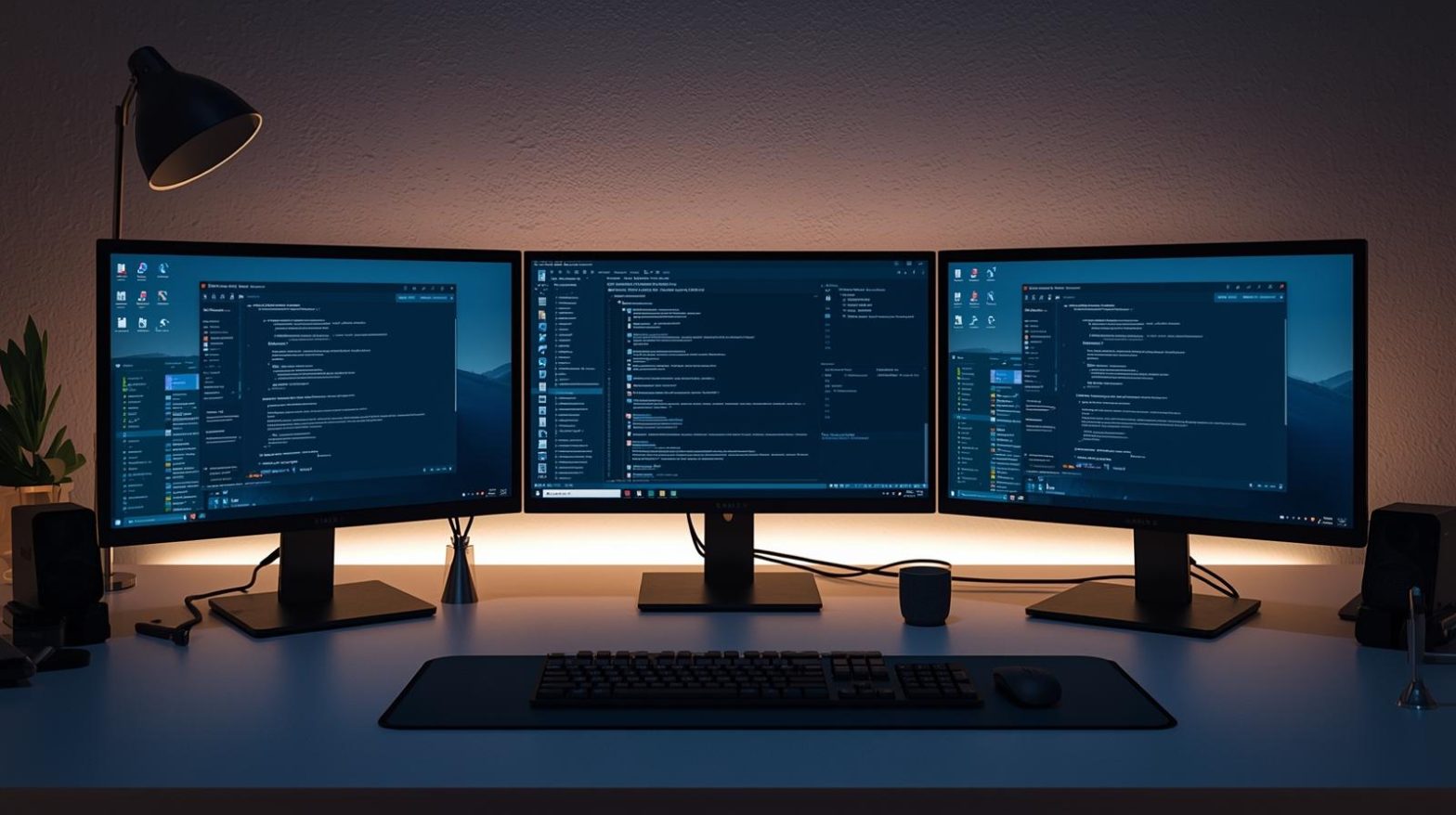
If you rely on remote work or IT administration, knowing how to display Remote Desktop on multiple monitors can significantly improve your efficiency. Many IT professionals prefer dual- or multi-monitor setups to streamline workflows, view dashboards, compare data, or manage multiple apps at once. The good news is that you can extend this convenience to remote sessions as well. In this guide, you’ll learn how to set up multi-monitor RDP, fix common issues, and optimize your settings for a seamless experience.
Understanding Multi-Monitor Remote Desktop Capabilities
Before configuring Remote Desktop for multiple screens, it helps to understand what’s supported. When you attempt to display Remote Desktop on multiple monitors, the experience depends on your:
• Windows edition
• Remote Desktop client version
• Monitor resolution and scaling
• Network bandwidth
• System GPU and display drivers
Modern systems with updated RDP clients generally support multi-monitor mode, but configurations may vary.
How Multi-Monitor RDP Works in Windows
Windows Remote Desktop allows users to extend their remote session across multiple displays. When you enable this option, the remote system recognizes all monitors connected to your local machine as a single virtual workspace.
Enable Multi-Monitor RDP Using Remote Desktop Client (mstsc)
To display Remote Desktop on multiple monitors using the built-in Windows client:
-
Press Win + R, type mstsc, and hit Enter.
-
Click Show Options.
-
Navigate to the Display tab.
-
Enable the checkbox “Use all my monitors for the remote session”.
-
Connect to your remote device as usual.
Using Command Line for Multi-Monitor RDP
You can also launch RDP with multi-monitor support directly from the command line. For example:
mstsc /multimon
This command forces RDP to span across all available monitors.
Display Remote Desktop on Multiple Monitors in Windows 11
Windows 11 includes enhanced multi-monitor support, providing smoother rendering and reduced latency. To set it up:
• Open Settings > System > Display
• Arrange monitors in the preferred orientation
• Launch Remote Desktop and enable multi-monitor mode
• Ensure both local and remote systems have updated graphics drivers
For enterprise networks, enabling “Hardware-accelerated GPU scheduling” improves multi-monitor RDP performance.
Using Remote Desktop with Multiple Monitors on macOS
Mac users can also display Remote Desktop on multiple monitors using Microsoft’s Remote Desktop app for macOS.
Steps:
-
Open Microsoft Remote Desktop from the Mac App Store.
-
Edit your saved PC connection.
-
Under Display, enable “Use all monitors”.
-
Save and connect.
Mac users benefit from smoother multi-monitor transitions if running macOS Ventura or later.
Multi-Monitor Support in Chrome Remote Desktop
Chrome Remote Desktop is widely used for personal and business access. It supports viewing multiple monitors but does not combine them into one workspace like mstsc.
Options include:
• Switch between monitors
• View a single monitor
• Display monitors in tiled mode
Chrome Remote Desktop is ideal for lightweight access but may not be ideal for heavy multi-display workloads.
Benefits of Using Multiple Monitors in Remote Desktop Sessions
When you display Remote Desktop on multiple monitors, you gain several advantages:
Increased Productivity
IT administrators can monitor logs on one screen, dashboards on another, and documentation on a third.
Better Multitasking
Security analysts can analyze threats, review alerts, and check compliance dashboards effortlessly.
Enhanced Collaboration
Remote workers can share one screen while referencing another—helpful for training and support.
Reduced Context Switching
Multi-monitor setups reduce time lost switching windows.
These benefits make multi-monitor RDP an essential capability for serious IT and cybersecurity teams.
Troubleshooting Multi-Monitor RDP Issues
Sometimes, Remote Desktop won’t display multiple monitors correctly. Here’s how to fix common issues:
1. Monitors Not Detected
• Ensure both monitors are active and detected locally
• Update GPU drivers
• Use the same scaling or resolution on both monitors
2. RDP Uses Only One Display
• Recheck the “Use all my monitors” setting
• Disable “Use default resolution” in client settings
3. Lag or Slow Performance
• Switch to a wired Ethernet connection
• Reduce remote desktop visual effects
• Lower resolution or use identical monitor resolutions
4. Session Opens on Wrong Monitor
• Rearrange displays in local display settings
• Toggle primary monitor assignment
5. Multi-Monitor Option Missing
This usually means:
• You’re using Windows Home (upgrade required)
• Your system is running an outdated RDP client
• Group Policy restrictions are applied
• RDP server doesn’t support multiple monitors
Advanced Multi-Monitor RDP Options for IT Teams
Professionals managing large networks can take additional steps to optimize multi-monitor Remote Desktop:
Group Policy Configuration
IT teams can enforce multi-monitor access via:
Computer Configuration > Administrative Templates > Windows Components > Remote Desktop Services > Remote Desktop Session Host > Remote Session Environment
Enable: Use the hardware default graphics adapter for all RDP sessions
Firewall & RDP Port Optimization
• Open or forward port 3389 properly
• Use Network Level Authentication (NLA) to secure sessions
• Consider port-changing strategies for security
High-Resolution Multi-Monitor Sessions
Systems running 4K or ultrawide monitors may need:
• Enhanced session mode (Hyper-V)
• Hardware GPU acceleration
• Display scaling standardization
Using RMM Tools with Multi-Monitor RDP
Remote Monitoring and Management tools often include built-in multi-monitor support—for example:
• Screen switching
• Tiling monitors
• Zoom-in remote view
• Multi-session management
For MSPs, system integrators, and IT departments, RMM platforms provide better performance and visibility than standard RDP clients.
Best Practices for Using Multi-Monitor RDP Securely
While using multiple monitors increases productivity, IT and security teams must ensure sessions remain secure.
• Use strong authentication, such as multi-factor login
• Enforce encrypted RDP sessions
• Require VPN access before RDP connections
• Limit access using role-based permissions
• Maintain a zero-trust architecture
• Ensure RDP clients are updated to the latest stable version
Frequently Asked Questions
1. Can you use Remote Desktop on dual monitors?
Yes. Windows RDP fully supports extending sessions across multiple monitors.
2. Does multi-monitor RDP work on Windows Home?
No. You need Windows Professional or Enterprise to use multi-monitor mode.
3. Why isn’t Remote Desktop using all my monitors?
Common reasons include outdated drivers, incompatible RDP versions, or disabled multi-monitor settings.
4. Can Mac users use multi-monitor RDP?
Yes. Microsoft’s Remote Desktop for macOS supports multiple monitors.
5. Does Chrome Remote Desktop support multiple monitors?
Yes, but monitors are displayed individually or in tiled mode—not as one combined workspace.
Final Thoughts
Learning how to display Remote Desktop on multiple monitors gives you a professional-grade setup that enhances productivity, visibility, and remote workflow efficiency. Whether you’re managing endpoints, responding to cybersecurity alerts, or collaborating remotely, multi-monitor RDP access helps you work smarter across every environment.
Take the next step toward smarter project execution — Start your free trial with ITarian to streamline workflows, automate repetitive tasks, and elevate your project delivery across every team.

 Loading...